PrizeFiler – General Setup
The PrizeFiler module has a number of general setup options that are accessible via PrizeFiler > General Setup
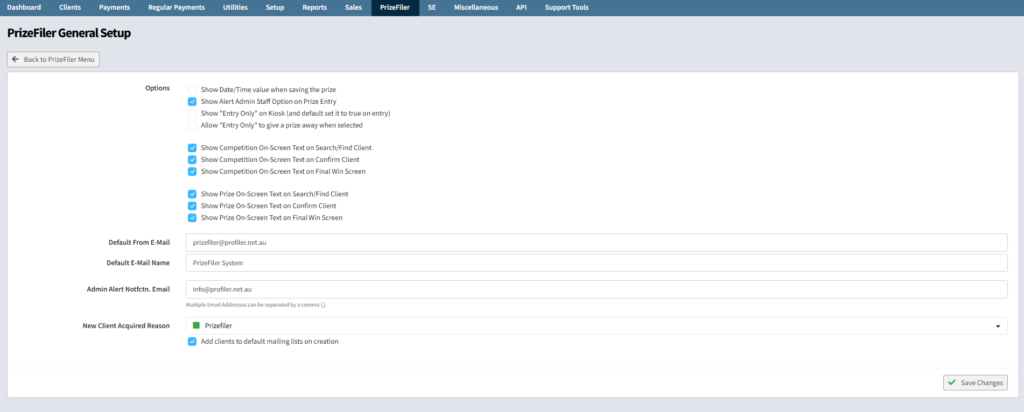
These options are:
- Show Date/Time value when saving the prize – this shows the optional date and time when giving away the prize. When off, the current date and time are used
- **Show Alert Admin Staff Option on Prize Entry **– when enabled, this will put a tick box option when creating a prize giveaway on the Kiosk entry to flag that this needs further attention or help. These responses will then go to PrizeFiler > PrizeFiler Admin Alerts
- Show Competition On-Screen Text on xxxx – this allows you to define which screen(s) on the kiosk module to show the **On-Screen Text **field of the **Competition Setup **on
- Show Prize On-Screen Text on xxx – this allows you to define which screen(s) on the kiosk module to show the **On-Screen Text **field of the Prize Setup on.
- Allow “Entry Only” to give a prize away when selected – when enabled, prizes can be allocated even when the “Entry Only” option is ticket. The normal settings for this is “unticked”
- **Default From E-Mail **– who the automated prize win emails are sent from / replies go to.
- Default E-Mail Name – the “nice name” that people see who the email come from
- Admin Alert Notfctn. Email – if the **Show Alert Admin Staff Option **is enabled – when an alert is entered it will go to PrizeFiler > PrizeFiler Admin Alerts screen and also the email address(es) listed in this screen
- **New Client Acquired Reason – when a new client is entered to PrizeFiler – the acquired code will be set as this value – you can create new Client Acquired Codes in Setup > Clients > Added to Database Reason – more information here **– and when the **Add clients to default mailing lists on creation **is ticked, any new clients will be added to your default mailing lists when they are added via PrizeFiler as a new client
When you have updated the details required click Save Changes
general
prizefiler
setup