Setting a Delivery Method by Payment Method for Regular Payments
Setting a Delivery Method by Payment Method for Regular Payments
Module: Setup → Generic Setup → Regular Payment Settings | Audience: Administrators
Overview
Delivery Method records how a payment reached you — Online, Mail, Direct Deposit, Over the Counter and so on. For regular payments you can have Profiler set this automatically based on the payment method the regular payment uses, so that (for example) every Direct Deposit regular payment is marked with a Direct Deposit delivery method, while every Credit Card regular payment is marked as Online.
This saves staff choosing a delivery method by hand on every regular payment, and keeps delivery method reporting consistent between payments created by automation and payments entered manually.
Getting there
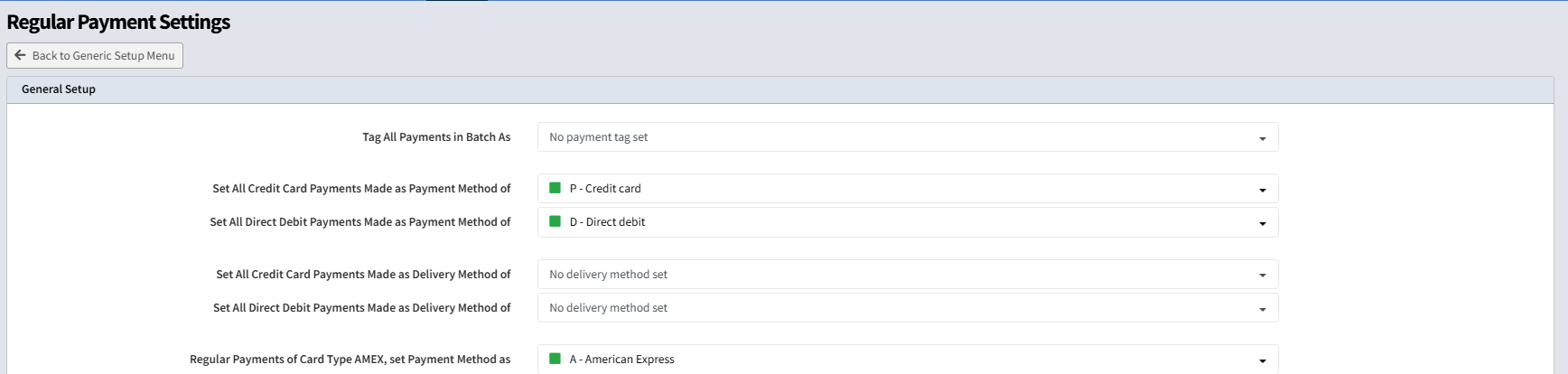
Go to Setup → Generic Setup and choose Regular Payment Settings from the Generic Parameters list. The settings below are in the General Setup panel at the top of the screen.
Before you start
- The delivery methods you want to use must already exist under Setup → Payments Menu → Payment Delivery Methods.
- The payment methods you want to match on must already exist under Setup → Payments Menu → Payment Methods, and be ticked as Used for Automatic Payments if they are used by automatic regular giving.
Field reference
These five settings work together. The two payment method settings decide which payment method a regular payment is recorded against; the delivery method settings sitting alongside them decide the delivery method to match.
| Field | What it does | Notes |
|---|---|---|
| Set All Credit Card Payments Made as Payment Method of | The payment method given to credit card regular payments | Choose the payment method your card payments should use |
| Set All Direct Debit Payments Made as Payment Method of | The payment method given to direct debit regular payments | Choose the payment method your direct debit payments should use |
| Set All Credit Card Payments Made as Delivery Method of | The delivery method applied when the regular payment uses the credit card payment method above | Leave blank to fall back to the all-payments setting |
| Set All Direct Debit Payments Made as Delivery Method of | The delivery method applied when the regular payment uses the direct debit payment method above | Leave blank to fall back to the all-payments setting |
| Set All Payments Made as Delivery Method of | A single delivery method applied to every regular payment | The fallback used when neither of the two settings above applies |

How the delivery method is chosen
When a regular payment is created, Profiler works down this list and uses the first one that applies:
- The payment is against a regular payment and its payment method matches the credit card or direct debit payment method set above → the matching delivery method is used.
- The payment method has its own Force Delivery Method when Payment method is Used → that delivery method is used.
- Set All Payments Made as Delivery Method of has a value → that delivery method is used.
- Otherwise the delivery method is left blank.
If both the credit card and direct debit settings point at the same payment method, the direct debit delivery method wins.
Where the rule applies
| Situation | Applies? |
|---|---|
| Automatic regular payment runs (daily automation and batch runs) | Yes |
| Direct debit payments confirmed back from the bank | Yes |
| Manual payment entry where a line is allocated to a regular payment | Yes |
| Payments created by import, API or Xero that are allocated to a regular payment | Yes |
| One-off payments not allocated to a regular payment | No — the payment method's Force Delivery Method applies instead |
Step-by-step
Mark direct deposit regular payments as Direct Deposit, and card ones as Online
- Go to Setup → Generic Setup → Regular Payment Settings.
- In Set All Credit Card Payments Made as Payment Method of, choose your credit card payment method.
- In Set All Direct Debit Payments Made as Payment Method of, choose your direct deposit / direct debit payment method.
- In Set All Credit Card Payments Made as Delivery Method of, choose Online.
- In Set All Direct Debit Payments Made as Delivery Method of, choose Direct Deposit.
- Click Save Changes.
From the next regular payment created, the delivery method is set automatically to match the payment method used.
Apply one delivery method to every regular payment
- Leave both … as Delivery Method of dropdowns blank.
- Set Set All Payments Made as Delivery Method of to the delivery method you want.
- Click Save Changes.
Turn the rule off again
- Set the delivery method dropdown you no longer want back to No delivery method set.
- Click Save Changes. Regular payments fall back to the all-payments setting, or to the payment method's own Force Delivery Method.
Tips and gotchas
- Set both dropdowns in a pair. Manual payment entry decides whether a payment is credit card or direct debit by matching the payment method, so the payment method dropdown must be set for the matching delivery method to apply on manually entered payments. Automatic runs can also identify a direct debit from the stored payment token.
- This overrides Force Delivery Method, but only for regular payments. If a payment method has a Force Delivery Method set and the regular payment settings also apply, the regular payment setting wins. One-off payments using that payment method still get the forced method.
- Existing payments are not changed. The rule applies only to payments created after you save, so historic records keep whatever delivery method they already had.
- The settings are system-wide, not per site or per source code.
- If regular payments previously came through with no delivery method at all, expect delivery methods to start appearing on new records once these settings are in place — worth warning anyone who reports on delivery method.
- Delivery method names cannot be renamed once created, so if you need different wording, add a new delivery method and make the old one inactive before pointing these settings at it.