Uploading Images to Email and PDF Templates
If you wish to upload a image to your email or PDF templates you can do this via the Template Editor.
The image file will need to be on your computer or in a location accessible by your computer to upload to Profiler.
From Setup > Templates, and either using the Email or PDF template system edit or create a template.
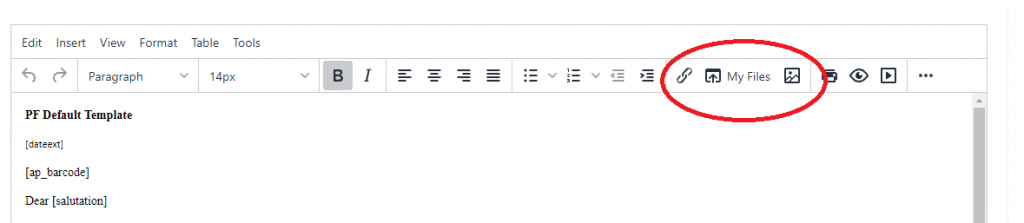
Click on the area in template where you wish the image to be inserted, and then, In the template toolbar click on the **My Files **button (circled above). This will load up your file browser
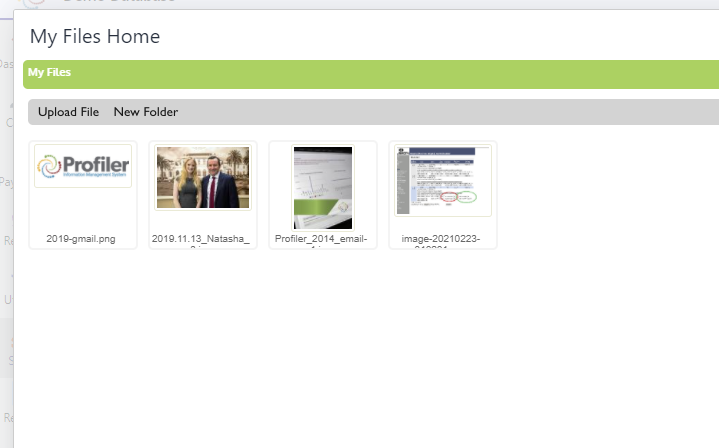
You will see your existing files in the system.
Using an Existing File
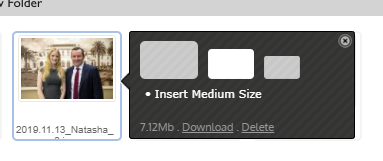
If you wish to include one of these already in your email, click the file you wish to insert, and you can choose what size (the 3 options shown below), and then that image will be inserted into your email template
Uploading a New File
In the file manager, in the top left hand corner, click “Upload New File”
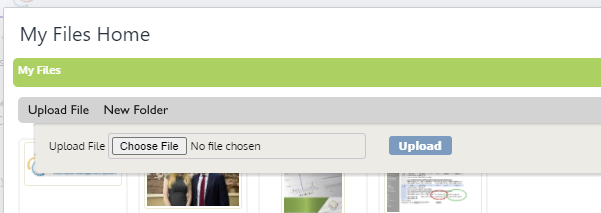
You can then click **Choose File **and browse on your computer/network to upload the file to Profiler for use on the templates, once selected, click Upload
The image will then be uploaded, and you will be able to click on the picture and insert it into your template as per the above section.