Exporting an Email (from Outlook) to a Client Attachment
If you have an email you wish to save as a client attachment in your Microsoft Outlook, you can export the email from Outlook and upload it as an attachment under **Clients > Attachments **in Profiler. This article explains the process.
In Microsoft Outlook
- Click and select the email in Outlook so you can see it
- Go to File > Save As
- Save the email onto your PC in a location (ie. Documents)
- The email will have a filename (which is by default the subject) and then the last extension of .msg
In Profiler
Go to the Client you wish to attach the email to
Go the the **Attachments **tab
Click Add New Attachments
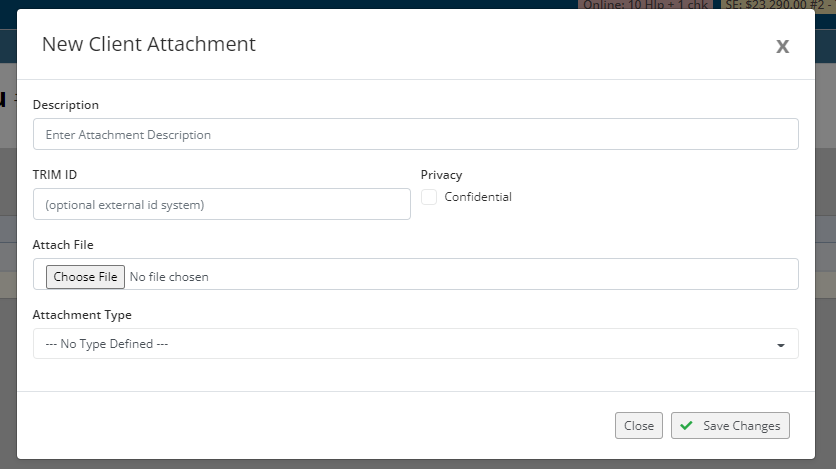
In the description you can type the description for the email that you are about to upload
In **Attach File **click **Choose File **and go and select the file you previously downloaded from Outlook.
When ready click Save Changes
The file will be uploaded and stored against the client in Profiler under the Attachment tab ready for viewing in the future.
attachment
email
export
update