Financial Year and Month Locks
Financial Year & Month Locks
Module: Utilities → Database Management → Lock Financial Periods | Audience: Administrators
Overview
Financial period locks let you close off a financial year — or an individual month — so the payments in it can no longer be changed. Once a period is locked, Profiler will not allow anyone to create a payment dated in that period, or to update, re-date or delete a payment that sits in it. Use year locks after your end-of-financial-year processes are complete, and month locks as part of your end-of-month reconciliation so figures already reported to finance can't drift.
Locks apply to everyone, including administrators — but they are not permanent. If a genuine correction is needed, unlock the period, make the change, and lock it again.
Getting there
- Open the Utilities menu.
- Under Database Management, click Financial Year & Month Lock (the screen is titled Lock Financial Periods).
Access to this screen is controlled by your security group, so only users with the appropriate permission will see it.
The screen
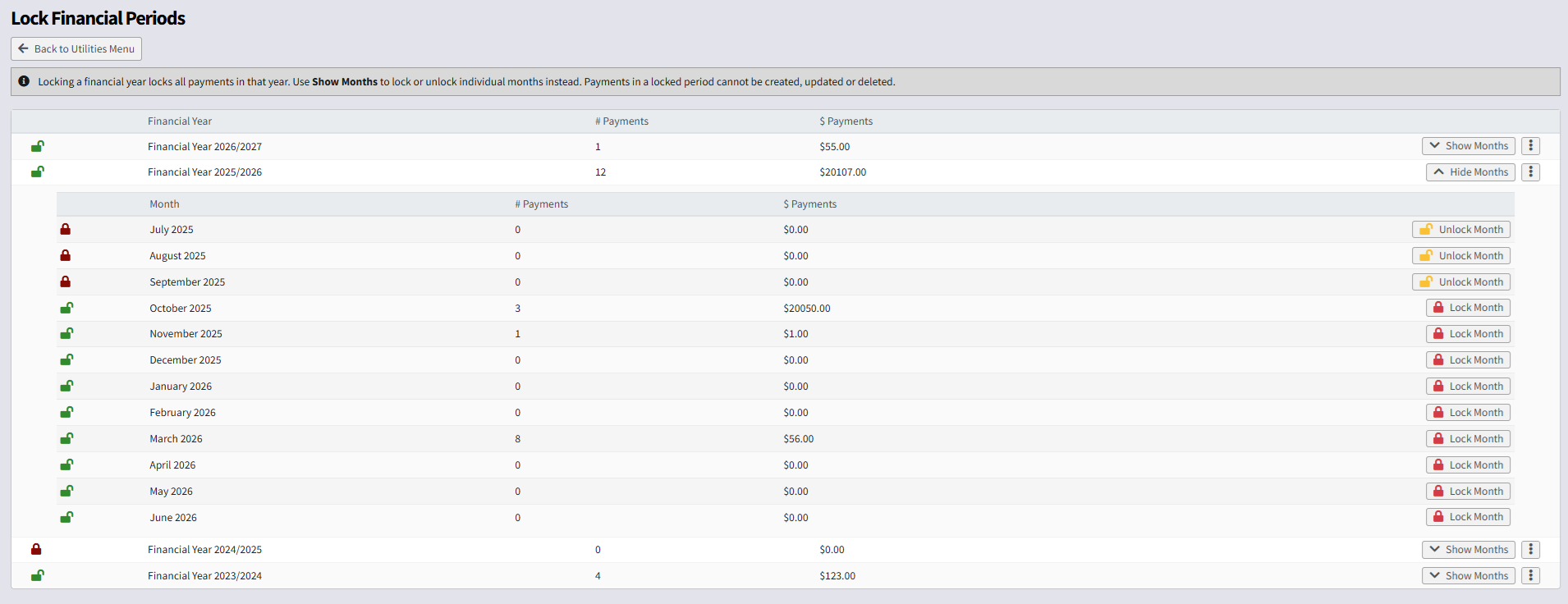
Each financial year is listed with:
| Column | What it shows |
|---|---|
| Lock icon | A red closed padlock if the year is locked, a green open padlock if it is not. |
| Financial Year | The year, running 1 July to 30 June. |
| # Payments | How many payments are recorded in that year. |
| $ Payments | The total value of those payments. |
Buttons and actions
| Action | What it does |
|---|---|
| Show Months | Expands the year into its twelve months (July through June), each with its own payment count, total and padlock. Click Hide Months to collapse it again. |
| ⋮ → Lock Financial Year | Locks the whole year. Every month in the year shows as Locked by Financial Year. |
| ⋮ → Unlock Financial Year | Removes the year lock. Any month locks you set individually remain in place. |
| Lock Month | Locks just that month (shown in the expanded month view). |
| Unlock Month | Removes the lock from that month. |
What a lock stops
When a year or month is locked, users can no longer:
- Create a payment dated in the locked period. Payment Entry will refuse to save it and show a message asking for a different payment date.
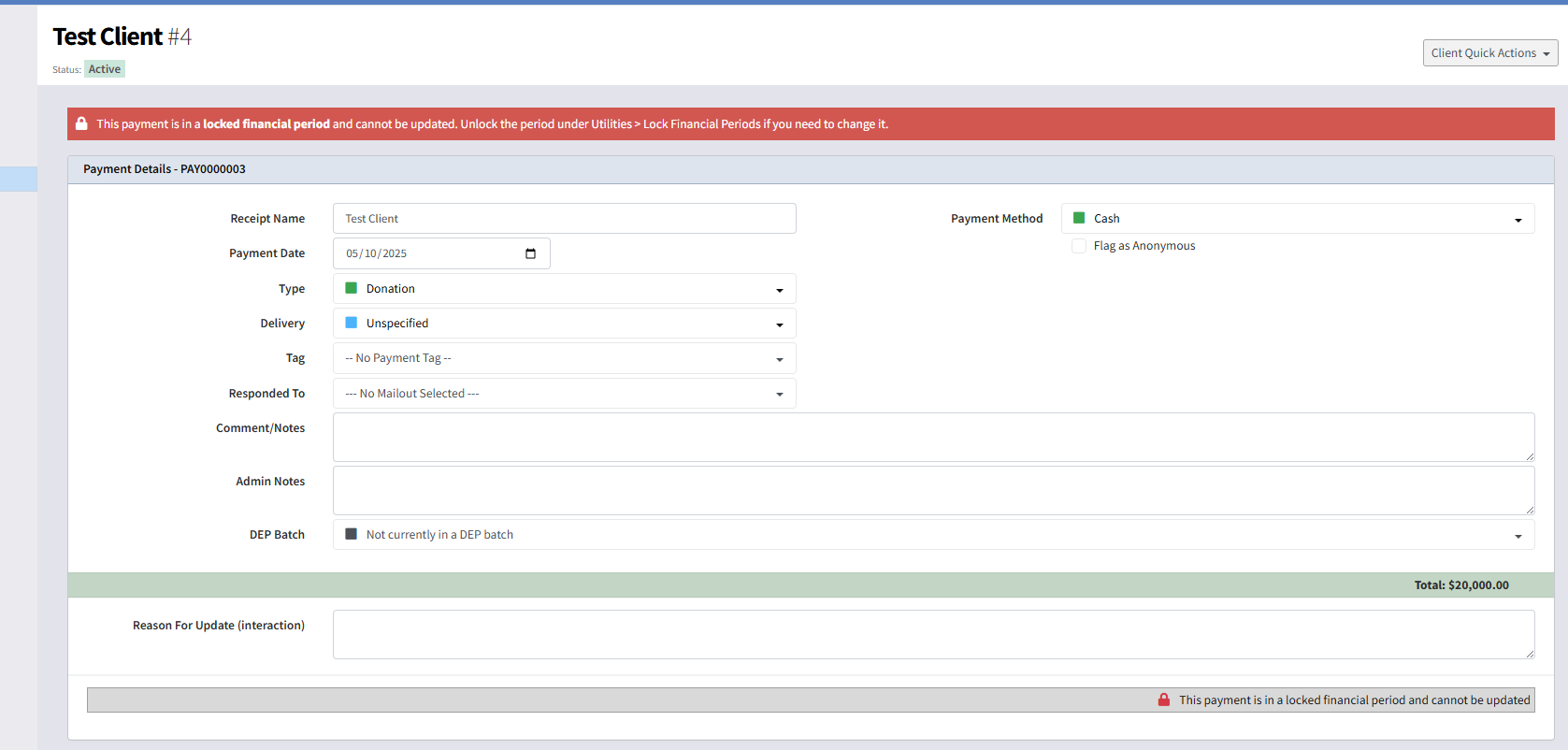
- Update a payment in the locked period. The payment lookup screen shows a locked banner, and the update and line-editing buttons are removed.
- Move a payment into a locked period by changing its payment date.
- Add or remove payment lines on a locked payment.
- Delete a payment in the locked period.
Payments in locked periods remain fully visible — you can still open them, report on them, and issue receipts. Locking only prevents changes to the underlying figures.
Step-by-step
Close off a month (end-of-month lock)
- Finish your month-end reconciliation (see Month End Reporting).
- Go to Utilities → Financial Year & Month Lock.
- Find the financial year the month belongs to and click Show Months.
- Check the month's payment count and total match what you reconciled.
- Click Lock Month. The padlock turns red and the month is closed.
Close off a financial year
- Complete your end-of-financial-year processing and receipting.
- Go to Utilities → Financial Year & Month Lock.
- On the year's row, click the ⋮ menu, then Lock Financial Year.
Make a correction in a locked period
- Unlock the month (or year) containing the payment.
- Make the correction on the payment.
- Lock the period again straight away.
Tip: because unlocking is deliberately a separate step, it leaves you in control — nobody can "just quickly fix" a closed month without consciously reopening it first.
Frequently asked questions
If a year is locked, do I still need month locks?
No — a year lock covers all twelve of its months. Month locks are for closing months progressively during the year, before the year itself is closed.
What happens to my month locks when I unlock the year?
They stay. Unlocking a year only removes the year-level lock; any months you locked individually remain locked until you unlock them one by one.
Does locking affect receipts or reports?
No. Locked payments still appear in every report, receipt run and export. Only creating, editing and deleting payments is blocked.
Which months belong to which financial year?
Profiler financial years run 1 July to 30 June, so "Financial Year 2025/2026" contains July 2025 through June 2026.