Stripe Payment Gateway Setup
When adding a stripe payment gateway set up you will need to obtain the API key from your stripe control panel.
Users with Stripe Administrator permissions can access a Stripe account’s API keys by navigating to the **Developers **section of the Stripe dashboard and clicking on API Keys
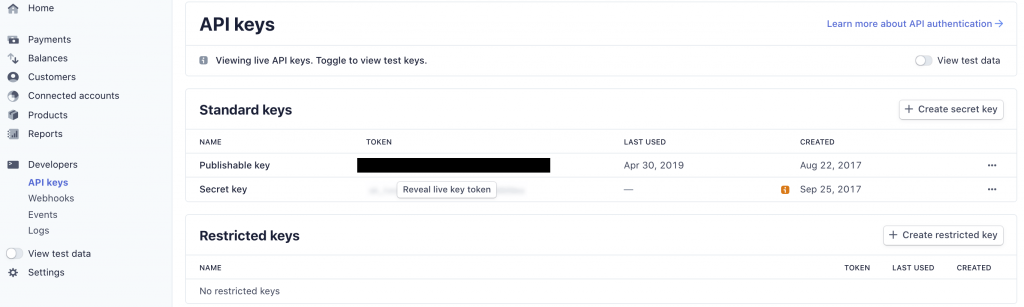
You need the **Secret Key **for use in Profiler – get this value
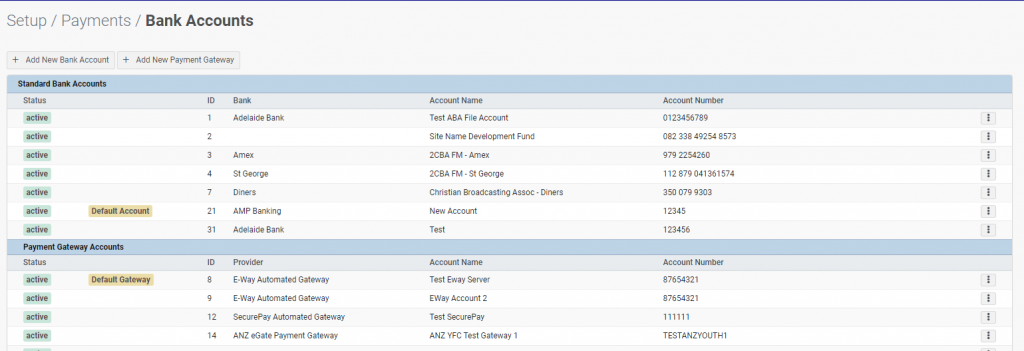
To add this to Profiler go to Setup > Payments > Accounts + Gateways
You will see all the Payment Bank Accounts and Gateways already define (if any)
Click the **Add New Payment Gateway **button at the top of the screen
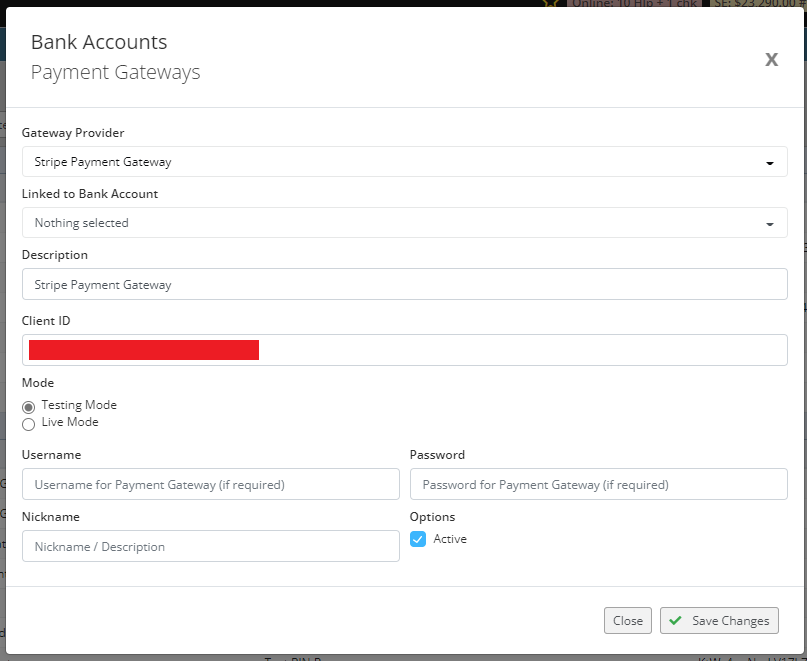
In the **Gateway Provider **– choose Stripe Payment Gateway
The **Description **is for your own internal purposes and can be a description about the payment gateway
Paste the **Stripe Secret API Key **into the **Client ID field **
If you are using a sk_test (Stripe Test API) make sure the **Mode is set to TESTING MODE **otherwise, if it is a sk_live key, set it to Live Mode
In the **Username **field paste in the **Publishable Key **which will start with pk_
When ready, click Save Changes – you can now go to **Setup **> **Payments > Source Codes **and edit each of your sources codes to select this **Payment Gateway **for use.